Two images that are almost the same are the hardest thing to compare by eye. Show someone the retouched photo next to the original and they’ll nod politely, because side by side, a five percent change in sharpness or color reads as no change at all. The eye has to hop between two positions, and whatever it saw in one spot has faded by the time it lands on the matching spot next door. Working memory is the bottleneck, and it’s a bad one.
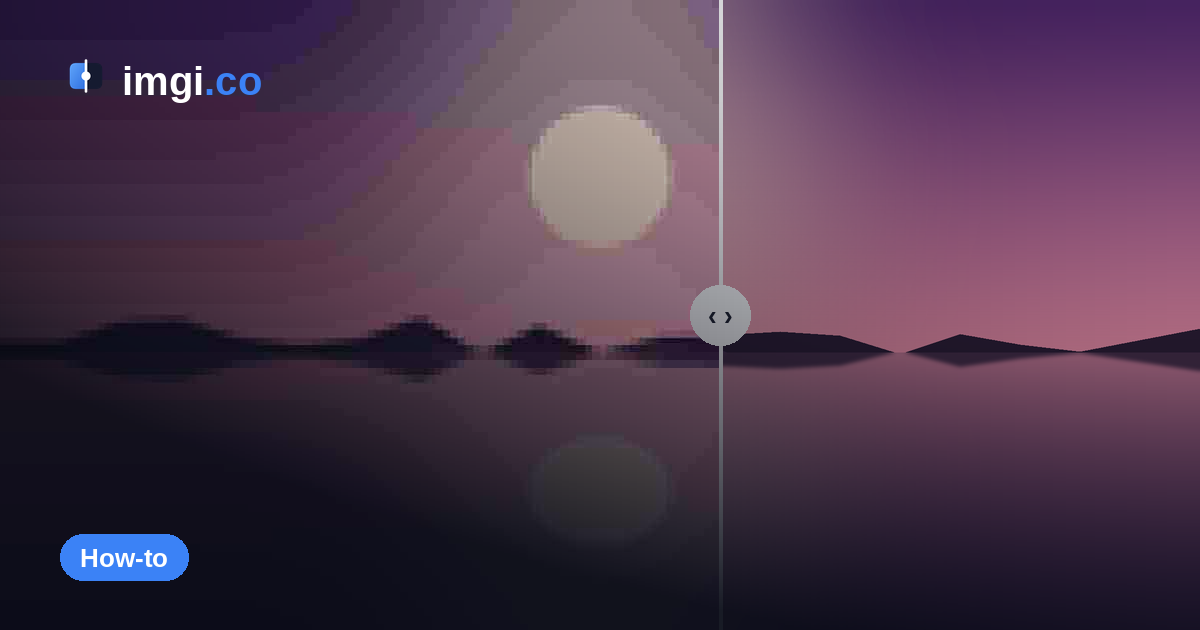
A before and after slider removes the hop. Both images sit in the exact same pixels, stacked, and you drag a divider to reveal one under the other. Nothing to remember; the change happens in place, in front of you. Texture shifts, compression smears, and color moves that side-by-side swallows become obvious the moment the boundary crosses them.
Here’s one live. Drag the handle:
Prep the two images first
The slider only proves something when the two files match everywhere except the difference you care about. Sixty seconds of prep protects that:
- Same dimensions and crop. If one image is 1920x1080 and the other is a 1600x900 crop of it, the slider shows you the size mismatch instead of the edit. Crop or resize first.
- Same orientation, obviously, but also the same framing. Two photos taken a step apart aren’t a comparison, they’re two photos.
- Watch the format. If one side went through a JPEG save and the other is a clean PNG, some of the “difference” is just compression. When file quality is the very thing you’re comparing, that’s the point; otherwise keep formats consistent.
- Name the files so the before is unambiguous. Swapped sides in a published comparison are surprisingly easy to miss and embarrassing to fix after you’ve shared the link.
Make the comparison
Open imgi.co and drop both files in. They stack immediately; drag the handle to check the alignment. Drag horizontally or vertically, whichever suits the image, a portrait edit often reads better with a vertical split.
Label each side. It takes five seconds and it’s the difference between a comparison that answers the question and one that starts a second argument about which side is which.
Then pick how it leaves your browser:
- Publish gives the comparison a short permanent link anyone can open, plus a one-line iframe embed. No account needed.
- Offline mode skips uploading entirely and runs the same slider locally in your browser. For client work under NDA, or when you just want a quick look, nothing leaves your machine.
One thing worth knowing about the published version: imgi serves the exact bytes you uploaded. No recompression, no “optimizing.” When the entire question is whether the fine grain survived an edit, the answer isn’t filtered through someone else’s JPEG encoder.
Where to actually look
Differences cluster where detail is dense or where processing struggles. Sweep the handle slowly across:
- Text and any hard, high-contrast edge
- Hair, fur, eyelashes, grass
- Smooth gradients like sky, where banding and compression blocks hide
- Skin texture in portraits, first thing retouching changes and first thing over-processing destroys
- Shadows and near-blacks, where crushed detail goes to die
Hold the divider half-open right on the interesting area. The half-and-half view is often more revealing than flipping fully between the sides.
Slider, flip, or difference view?
The slider isn’t the only way to compare, and it’s worth knowing when it’s the wrong one.
Flipping between two images in place (tap back and forth, like film reviewers do) is king for spotting whether anything changed at all, because motion catches the eye. It’s worse at showing where and how much. Difference blends, the ghostly mode some editors offer where identical pixels go black, are great for finding a needle: a moved watermark, a single edited region. They’re useless for judging quality, since everything nonidentical lights up equally.
The slider’s territory is the middle, which is most of real life: you know roughly what changed and want to see it, judge it, and show it to someone else in a way they can explore. If the question is “did the export smear the texture,” a slider answers in one drag.
Quick fixes when it looks wrong
- Both sides identical? You may be zoomed into a region the edit didn’t touch. Sweep the full frame once.
- One side looks softer everywhere: check that both files have the same pixel dimensions before blaming the edit; a scaled copy always loses.
- The images jump at the divider: different crops. Back to prep.
- Upload rejected: the free tier takes files up to 20 MB each; export a lossless PNG rather than a giant TIFF.
More than two versions
Comparing three edits, or five export settings? One imgi comparison holds up to ten images with a dropdown that picks which pair sits under the slider, so version one against version four is two clicks, not a new upload. For several separate comparisons that belong together, a whole shoot’s worth of retouches, group them into an album and share the one link.
Sharing it
The permanent link works anywhere text works: chat, email, a forum thread, a client message. On your own site, paste the iframe embed and the slider runs on the page. For the places that allow only images, Reddit posts, Discord, a Nexus description, export the comparison as a GIF or MP4 and the transition plays on its own.
That coverage is the quiet advantage of making the comparison once in one place: the same two images become a link, an embed, and a video, and they all stay in sync because they’re all the same comparison.
What people compare, in practice
Photo edits and retouching passes. Game mods against vanilla, which has its own guide with capture tricks. AI upscales, where the slider is the quickest test of whether any detail was actually added. Graphics settings and upscaler shootouts. Web design revisions. Product photos before and after cleanup. Renovation and landscaping records. Dental and cosmetic work, with the private option doing the discretion.
If you used imgsli for any of this before it went offline, imgi covers the same ground.
Two files, ten seconds, one link. That’s the workflow.